Mirror a selfie so text reads the right way, flip a picture upside down, or do both, then download it at the same pixel size in the format you choose.
Runs in your browser. Your image is never uploaded to a server.
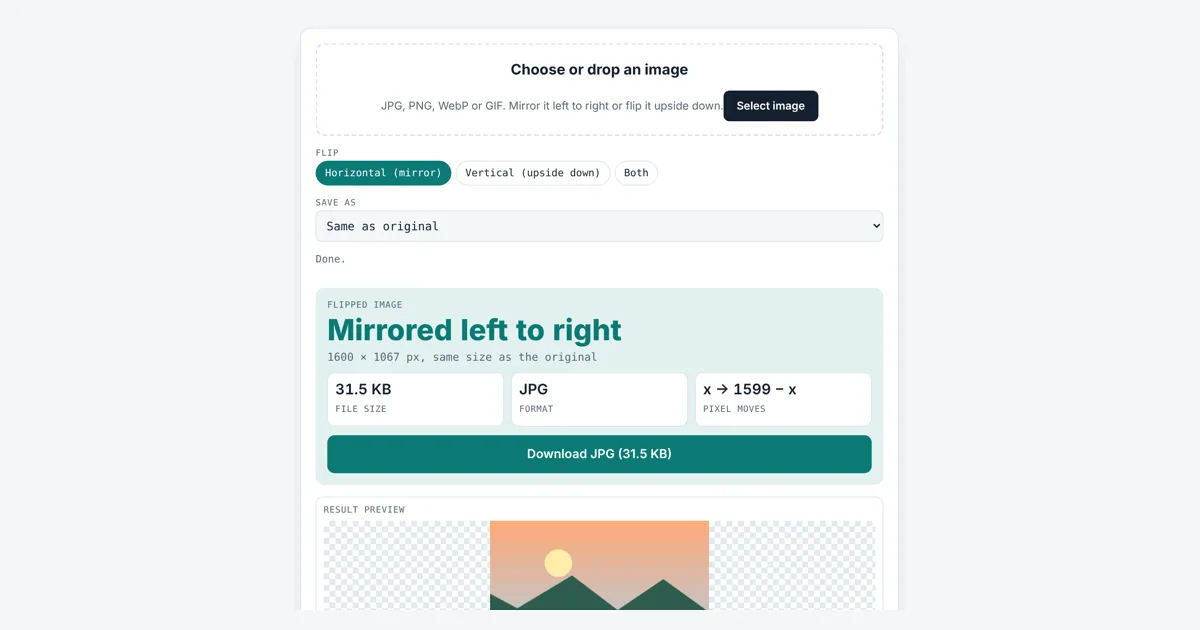
This tool lets you flip image files for anyone fixing a mirrored selfie, making a reflection effect or preparing an iron-on transfer. You get a mirrored or upside down copy at exactly the same size, and as a PNG every pixel is kept, just moved.
How Do I Flip an Image Horizontally?
Load the image and keep Horizontal (mirror) selected: each row of pixels is reversed, so the left edge becomes the right. Our 1600 × 1067 test photo stayed 1600 × 1067, with pixel x moved to 1599 − x. Tap Vertical to turn it upside down, or Both for the same result as a 180° turn.
What Is the Difference Between a Horizontal and a Vertical Flip?
A horizontal flip mirrors the picture left to right, like a reflection in a bathroom mirror, while a vertical flip turns it top to bottom, like a reflection in a lake.
In maths both are a reflection: every point jumps to the other side of a line through the middle of the image. A horizontal flip reflects across the vertical center line, and a vertical flip reflects across the horizontal center line. Unlike a rotation, a reflection changes the “handedness” of the picture, so text and clock faces read backwards.
vertical: new y = (height − 1) − y, x stays
both: x and y both change = a 180° rotation
| Choice | Pixel at (0, 0) moves to | Text looks | Same as |
|---|---|---|---|
| Horizontal | (1599, 0) | Backwards | A mirror reflection |
| Vertical | (0, 1066) | Upside down and backwards | A lake reflection |
| Both | (1599, 1066) | Upside down but readable | Rotating 180° |
Pixel positions are for our 1600 × 1067 test photo, counting from 0 at the top left corner.
Why Do Selfies Look Flipped?
Selfies look flipped because most phone front cameras show you a mirrored preview, so the saved photo, which is not mirrored, looks reversed to you.
You are used to your face in a mirror, so the preview feels natural, and the true view others see feels wrong. Some phones also save the mirrored version, which makes words on a T-shirt read backwards. A horizontal flip fixes either case in one tap.
Can You Flip Image Files Without Losing Quality?
Yes, flipping only moves pixels to new positions without changing or blending them, so a PNG copy is identical pixel for pixel.
We checked this by comparing the tool’s PNG output with a flip made by a separate Python image library: every pixel matched. Saving as JPG compresses again at 92% quality, which is lossy but very hard to see. The tool flips with the canvas scale method using -1 on one axis, which the browser treats as an exact mirror. To trim edges after flipping, try the crop image tool, and to change the format, use the image converter.
When Do You Need to Mirror an Image for Printing?
You need a mirrored image for iron-on transfers, T-shirt transfer paper and some sublimation prints, because the design is pressed face down onto the fabric.
Print it mirrored and it ends up the right way round once transferred. Check your paper’s instructions, since some light fabric papers want mirroring and some dark fabric papers do not.
Worked Example
We loaded a 1600 × 1067 landscape photo of a mountain with the sun on the right. With Horizontal (mirror) the sun moved to the left and the image stayed 1600 × 1067 px, 31.5 KB as a JPG. Each pixel moved from x to 1599 − x. Choosing Vertical put the sky at the bottom, and Both gave the same picture as a 180° rotation. Saved as PNG, all three results matched a separate Python flip pixel for pixel. A 400 × 300 transparent PNG kept its clear background as PNG, but saving it as JPG filled the clear parts with white.
How Do You Use the Flip Image?
Choose your image
Tap the drop area and pick a JPG, PNG, WebP or GIF, or drag a file in.
Pick the flip
Tap Horizontal to mirror, Vertical for upside down, or Both.
Check the result
The panel confirms the flip and shows the size, which stays the same.
Download the image
Pick a format if you need a different one, then tap Download.

Frequently Asked Questions
Is flipping the same as rotating 180 degrees?
Only when you flip both ways. Flipping horizontally and vertically together equals a 180° rotation. A single flip is a mirror image, which no rotation can produce, because text ends up reading backwards.
How do I unmirror a selfie?
Load the selfie and keep Horizontal (mirror) selected, then download. Writing on clothes or signs will read the right way. Running the flip twice gives back the original, since mirroring is its own undo.
Will a flipped image keep its transparent background?
Yes, when saved as PNG or WebP, or with Same as original for a PNG file. A JPG has no transparency, so any clear areas are filled white when you save as JPG.
Does flipping change the file size?
The pixel size never changes. The file size can change a little because the image is saved again. Our 47.6 KB test JPG was 31.5 KB after a horizontal flip at 92% JPG quality.
Can I flip a photo on my phone with this tool?
Yes. It works in mobile browsers on Android and iPhone. Tap the drop area to pick a photo from your gallery, tap a flip option, then tap Download to save the result.
Is my image uploaded to a server?
No. The flip happens on a canvas inside your browser. The photo never leaves your device, and the download link points to a file held in your browser memory.
Sources and Further Reading
- MDN Web Docs: CanvasRenderingContext2D scale() method
- Wikipedia: Reflection (mathematics)
- W3C: Portable Network Graphics (PNG) Specification
Related Tools
Last reviewed: October 2026