Convert JPG, PNG and WebP images into each other, up to 20 files at a time, with your own quality setting. Conversion happens in your browser, so nothing is uploaded and there is no watermark.
JPG, PNG, WebP, GIF, BMP, SVG or AVIF
Files are converted in your browser and are never uploaded.
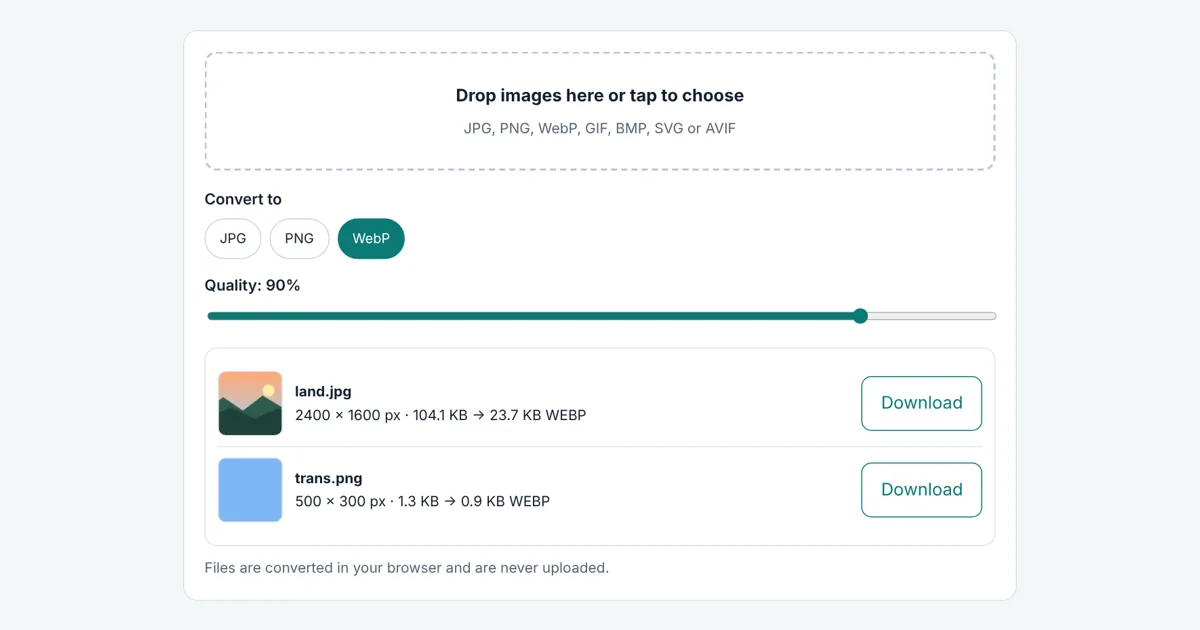
This free image converter changes pictures between JPG, PNG and WebP in a couple of taps. It handles up to 20 files at once and runs in your browser, so nothing is uploaded and there is no watermark.
How Do I Convert an Image to Another Format?
To convert an image, add it, choose JPG, PNG or WebP, and download the new file. Pick JPG for photos you share or upload, PNG when you need a transparent background or sharp text, and WebP when you want the smallest file for a website.
Which Image Format Should I Choose?
Choose JPG for photos, PNG for graphics that need transparency or crisp text, and WebP for the smallest files on a website.
| Format | Best for | Transparency | Compression |
|---|---|---|---|
| JPG | Photos, uploads, sharing, forms | No, turns white | Lossy |
| PNG | Logos, screenshots, graphics with text | Yes | Lossless |
| WebP | Website and blog images | Yes | Lossy or lossless |
Why Did My Transparent Background Turn White?
JPG cannot store transparency, so the converter fills empty areas with white when you choose JPG. Pick PNG or WebP instead and the transparent background stays exactly as it was.
Does Converting JPG to PNG Improve Quality?
No. Converting to PNG cannot bring back detail that JPG compression already removed. It only stops further loss when you edit and save the picture again, so convert to PNG before editing, not to fix a blurry photo. Google Search can index JPG, PNG and WebP images, so any of these formats is fine for SEO.
Only need one fixed conversion? Our PNG to JPG converter, JPG to PNG converter and WebP converter each focus on a single job with extra options such as the fill colour for transparent areas.
Worked Example
a detailed 2400 × 1600 px JPG test image of 1.44 MB converted to WebP at 90% quality came out at 507 KB, roughly a third of the original size. A small 500 × 300 px semi transparent PNG kept its transparency as WebP and shrank from 1.3 KB to 0.9 KB.
How Do You Use the Image Converter?
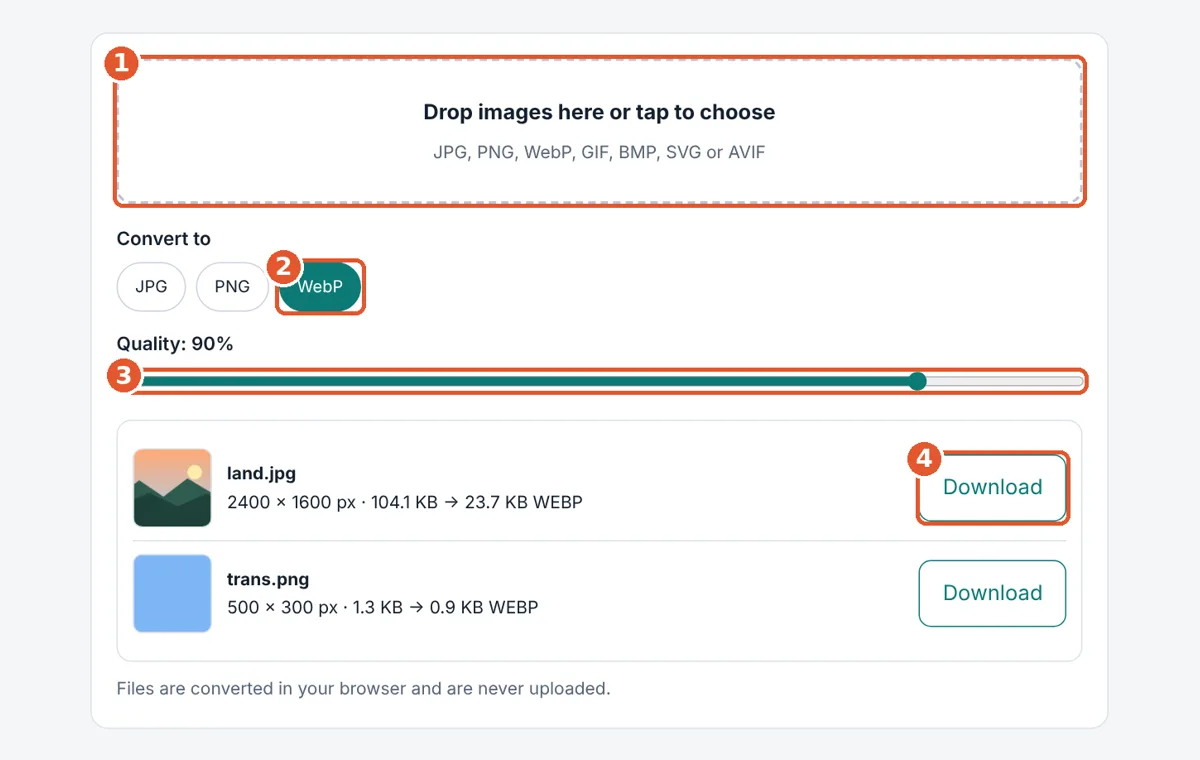
Add images
Tap the upload box or drag up to 20 files into it.
Choose a format
Tap JPG, PNG or WebP. Conversion starts right away.
Set the quality
For JPG and WebP, 90% keeps photos sharp. Lower it for smaller files.
Download
Tap Download next to each converted image.
Frequently Asked Questions
Is this image converter really free?
Yes. You can convert as many images as you like with no sign up, no watermark and no daily limit, because all the work happens on your own device instead of a paid server.
Can I convert iPhone HEIC photos?
Only if your browser can open HEIC files. Safari on iPhone and Mac usually can, while other browsers often cannot. On iPhone you can set the camera format to Most Compatible so new photos save as JPG.
Why did my transparent background turn white?
JPG does not support transparency, so empty areas are filled with white during conversion. Choose PNG or WebP as the output format to keep the transparent background.
Does converting an image lower its quality?
Converting to PNG keeps full quality. JPG and WebP use the quality slider, and at 90% or higher the difference is very hard to see. Repeated JPG saves can slowly add blur.
Can I convert many images at once?
Yes. Add up to 20 images together and switch the format with one tap. Every file is converted and gets its own download button with the new size shown.
Are my images uploaded anywhere?
No. The converter uses your browser's built in canvas feature, so images never leave your phone or computer and nobody else can see them, not even us.
Sources and Further Reading
- Google: image SEO best practices
- Google Developers: WebP, an image format for the web
- MDN: HTMLCanvasElement.toBlob()
Related Tools
Last reviewed: October 2026