Upload a photo, screenshot or logo, then click or tap any spot to get the exact HEX, RGB and HSL color code, with copy buttons and a row of recent swatches.
Load an image to start.
Runs in your browser. Your image is never uploaded to a server.
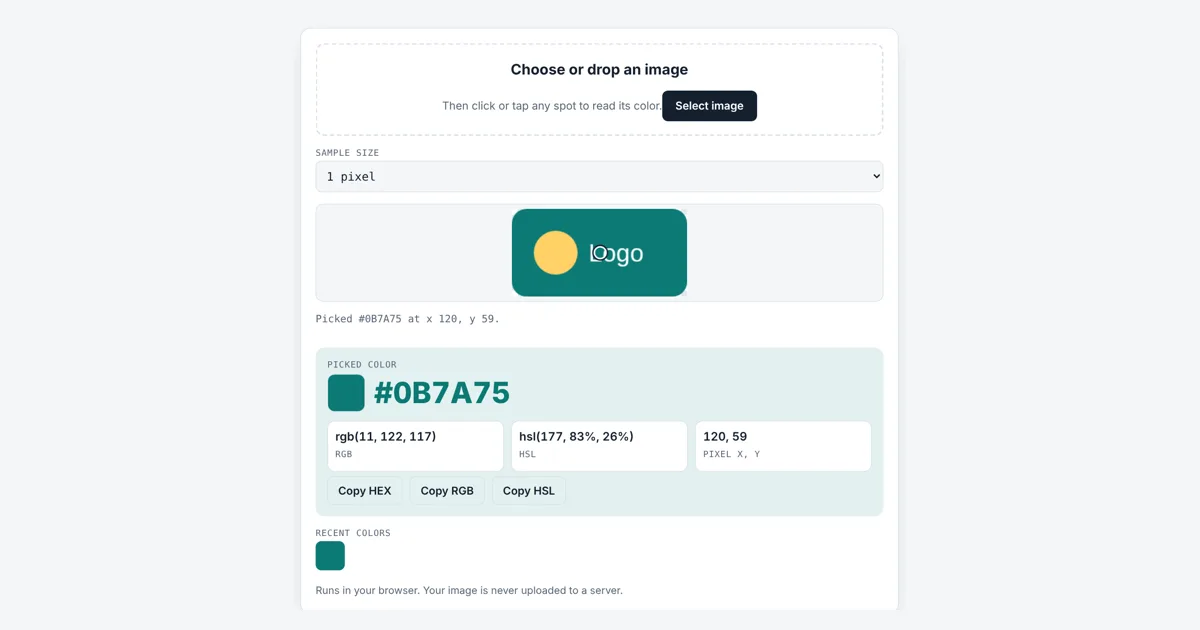
This image color picker is for designers, developers, crafters and anyone matching a color from a picture. Load an image, tap a pixel, and you get its HEX, RGB and HSL codes ready to copy into CSS, Canva, Figma or a paint store’s color matcher.
How Do I Find the Color Code of a Pixel in an Image?
Load the image, then click or tap the pixel. The tool reads its red, green and blue values and shows them as HEX, RGB and HSL. Tapping the teal box of our test logo gives #0B7A75, which is rgb(11, 122, 117) and hsl(177, 83%, 26%).
How Does an Image Color Picker Work?
An image color picker draws your picture onto a canvas, reads the red, green, blue and alpha numbers of the pixel you click, and turns them into color codes.
The browser’s getImageData method returns four numbers from 0 to 255 for each pixel: red, green, blue and alpha. The tool maps your click from screen position to image position, so a tap in the middle of a 1600 × 1067 photo reads pixel 800, 532 even on a small phone screen. The Sample size box can average a 3 × 3 or 5 × 5 block instead, which smooths out JPEG noise.
What Is the Difference Between HEX, RGB and HSL?
HEX, RGB and HSL are three ways to write the same sRGB color: HEX packs the numbers into base 16 code, RGB lists them as plain numbers, and HSL describes hue, saturation and lightness.
RGB: rgb(red, green, blue), each 0 to 255
HSL: L = (max + min) ÷ 2, S = (max − min) ÷ (1 − |2L − 1|), H = angle on the color wheel
HEX is the short code used in CSS and design apps, for example #0B7A75. RGB shows the same values as numbers, rgb(11, 122, 117). HSL is easier to tweak by hand: hsl(177, 83%, 26%) means a hue of 177° (teal), 83% saturation and 26% lightness. All three are defined in the W3C CSS Color specification. If you also need the picture itself in another format, such as WebP or PNG, our image converter changes it in the browser too.
| HEX | RGB | HSL |
|---|---|---|
| #0B7A75 | rgb(11, 122, 117) | hsl(177, 83%, 26%) |
| #FFD166 | rgb(255, 209, 102) | hsl(42, 100%, 70%) |
| #D3BCB4 | rgb(211, 188, 180) | hsl(15, 26%, 77%) |
| #E4572E | rgb(228, 87, 46) | hsl(14, 77%, 54%) |
| #1E90FF | rgb(30, 144, 255) | hsl(210, 100%, 56%) |
| #FFFFFF | rgb(255, 255, 255) | hsl(0, 0%, 100%) |
Why Is the Color I Picked Slightly Different From the Original?
A picked color can be a few steps off because JPEG compression changes pixels slightly, edges blend two colors, and partly transparent pixels are rounded when the browser stores them.
In a JPG, two pixels side by side may differ by 1 to 5 points in each channel, so try the 3 × 3 or 5 × 5 average for a steadier result. For a PNG with an alpha channel, the browser keeps colors premultiplied by alpha, so a stored blue of rgb(0, 120, 255) at 47% opacity reads back as rgb(0, 119, 255). If you need a color for a logo, a PNG or SVG source is more exact than a photo. To turn a picked photo into a smaller file afterwards, try the image compressor.
Can I Pick Colors From an Image on My Phone?
Yes, on a phone you load the image, then tap the spot you want, and a ring marks the exact pixel that was read.
The picker also works with a keyboard: tab to the image and use the arrow keys, with Shift to move 10 pixels at a time. Your last 8 colors stay as swatches under the result, so you can tap back to any of them.
Worked Example
We loaded a 240 × 120 logo with a teal box, a yellow circle and white text. Tapping the center of the image read pixel 120, 59 and gave #0B7A75, rgb(11, 122, 117) and hsl(177, 83%, 26%). Moving to the yellow circle at pixel 60, 59 gave #FFD166, rgb(255, 209, 102), hsl(42, 100%, 70%). We then loaded a 1600 × 1067 photo and tapped its center: pixel 800, 532 read #D3BCB4, a soft pink beige of hsl(15, 26%, 77%). Both colors sat in the recent swatches, ready to tap again.
How Do You Use the Image Color Picker?
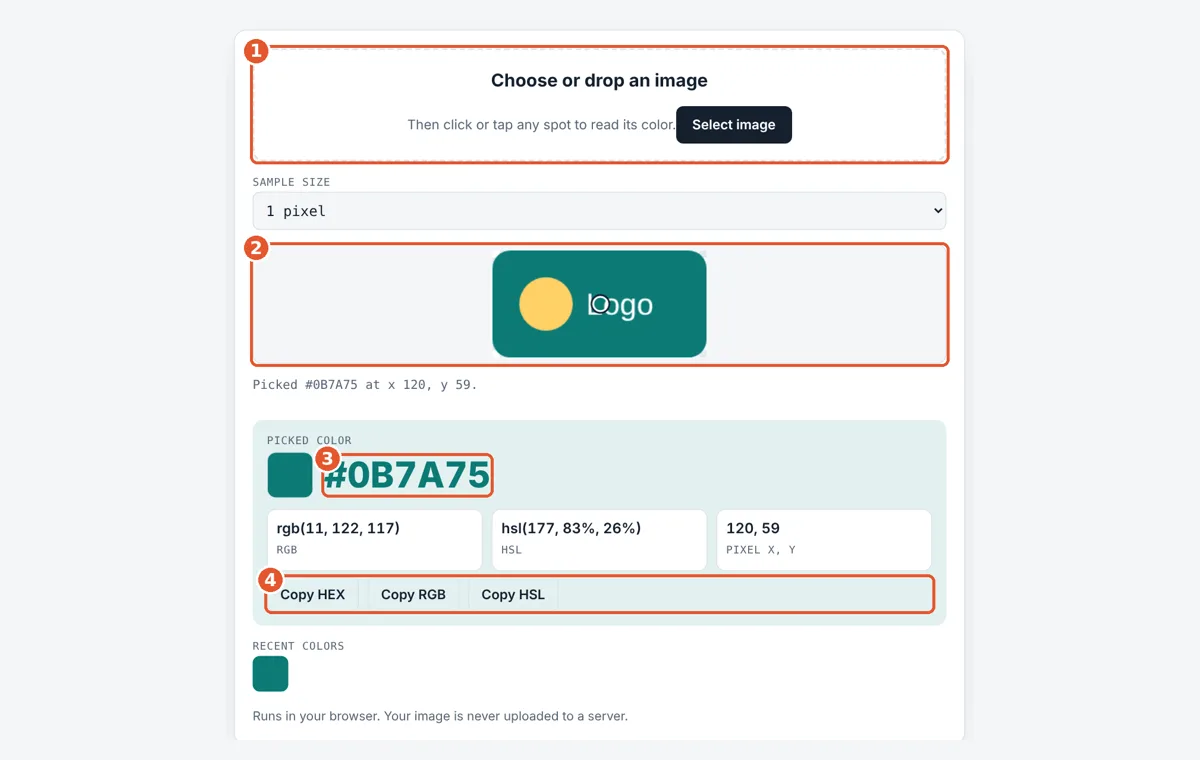
Choose your image
Tap the drop area and pick a JPG, PNG, WebP, GIF or SVG, or drag one in.
Tap the color you want
Click or tap the spot on the image. A ring marks the pixel that was read.
Read HEX, RGB and HSL
The swatch and codes show the color. Pick a 3 × 3 or 5 × 5 average for photos.
Copy or reuse a swatch
Tap Copy HEX, RGB or HSL, or tap a recent swatch to bring a color back.
Frequently Asked Questions
Is my image uploaded anywhere?
No. The image is drawn on a canvas inside your own browser and the pixel values are read there. Nothing is sent to a server, so screenshots of private work stay on your device.
What does an 8 digit HEX code mean?
The last two digits are alpha, the opacity. The tool shows them only for partly see-through pixels. For example, #0077FF78 is blue with an alpha of 78 in hex, which is 120 out of 255, or about 47% opacity.
Should I use 1 pixel or an average?
Use 1 pixel for logos, flat graphics and screenshots, where every pixel of an area is the same. Use a 3 × 3 or 5 × 5 average for photos, where JPEG noise makes neighbouring pixels differ by a few points.
Can I pick a color from a screenshot?
Yes. Take the screenshot, then load the PNG file here and tap the color. Screenshots are usually lossless PNG, so the code you get matches what was on screen in the sRGB color space.
How many recent colors are saved?
The last 8 picked colors appear as swatches under the result. Tap one to show its codes again. They are cleared when you close or reload the page, because nothing is stored.
Why does the HEX code change when I zoom the page?
It should not. The tool maps your tap to the real image pixel, not the screen pixel. If the code changes, you have most likely tapped a nearby pixel on an edge between two colors.
Sources and Further Reading
- W3C: CSS Color Module Level 4
- MDN Web Docs: CanvasRenderingContext2D getImageData() method
- WHATWG HTML Standard: the canvas element
Related Tools
Last reviewed: October 2026