Turn a sideways or upside down photo the right way up with one tap, or straighten a tilted scan by any angle, and download the result as JPG, PNG or WebP.
Runs in your browser. Your image is never uploaded to a server.
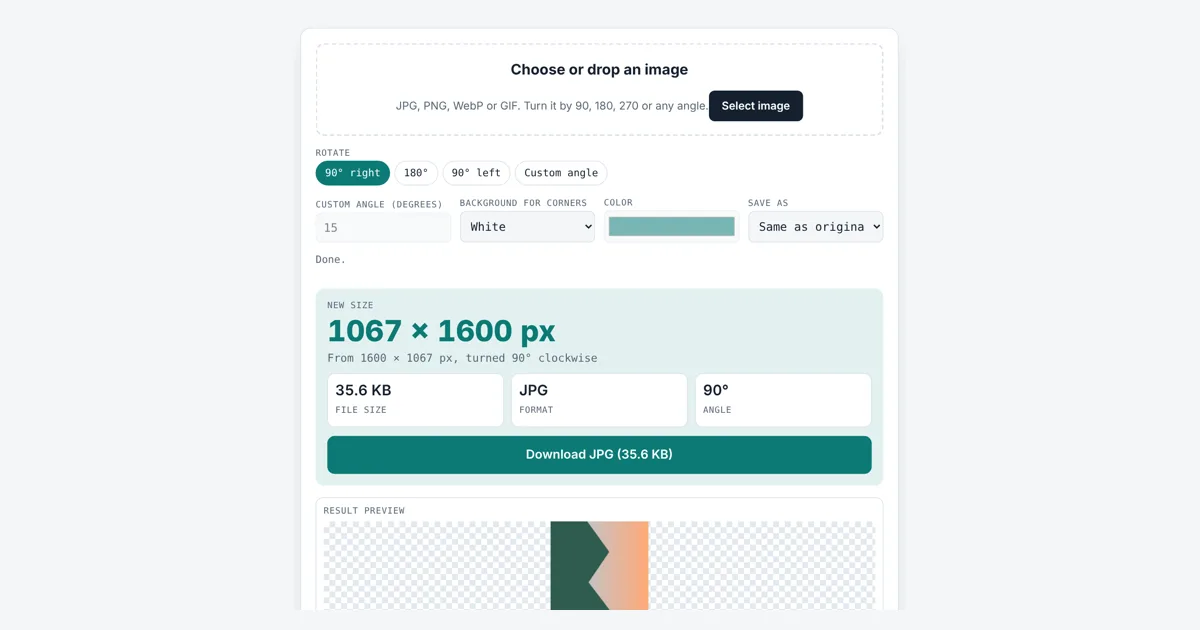
This tool lets you rotate image files for anyone fixing a sideways phone photo, an upside down scan or a slightly crooked document. You get the new pixel size, the angle used and a download in your chosen format, with no quality lost on 90° turns.
How Do I Rotate an Image 90 Degrees?
Load the image and tap 90° right, 180° or 90° left. The width and height swap for quarter turns, so our 1600 × 1067 test photo became 1067 × 1600 px. For a custom angle such as 15°, the canvas grows to 1822 × 1445 px to fit the tilted corners, which get your chosen background.
How Does the Rotate Image Tool Work?
The tool draws your photo on a canvas that is turned around its center by the angle you choose, then saves that canvas as a new file.
A positive angle turns clockwise and a negative angle turns counterclockwise, so 90° left is the same as 270° right or -90°. For quarter turns every pixel moves to a new spot without any blending, so a PNG result is pixel for pixel identical to the original turned on its side. For other angles each new pixel is blended from its neighbours, which is called interpolation, so very fine detail softens slightly.
new height = W × |sin θ| + H × |cos θ|
θ = angle in degrees × π ÷ 180
This is the bounding box of the turned picture: the smallest upright rectangle that holds all four corners. Values come from the rotation matrix, the standard maths for turning points around an origin.
What Size Will My Image Be After Rotating It?
A 90° or 270° turn swaps width and height, a 180° turn keeps the same size, and any other angle makes the image larger to fit the tilted corners.
| Angle | 1600 × 1067 photo becomes | Corners filled |
|---|---|---|
| 90° right or left | 1067 × 1600 | None |
| 180° | 1600 × 1067 | None |
| 1° | 1618 × 1095 | Thin slivers |
| 5° | 1687 × 1202 | Small triangles |
| 15° | 1822 × 1445 | Clear triangles |
| 30° or -30° | 1919 × 1724 | Large triangles |
| 45° | 1886 × 1886 | Largest triangles |
To remove the filled corners after straightening a tilted scan, trim the edges with the crop image tool.
Why Does My Photo Show Sideways After I Upload It?
A photo shows sideways when the camera saved it lying down and added an EXIF orientation tag that some websites ignore.
Phones often store the pixels in the sensor’s direction and write an EXIF Orientation value that tells viewers to turn the picture. Modern browsers follow that tag when they display or draw a JPG, so the preview here shows the photo upright. When you download, the turn is built into the pixels and the tag is not copied, so the photo looks the same on every site.
Which Background Should I Use for the Corners?
Use white for documents and prints, black for dark photos, and Transparent for logos or images you will place on a web page.
Transparent corners need PNG or WebP, since the JPEG format has no alpha channel; if you save a JPG they turn white. A clear PNG of a photo is much larger, 526.8 KB for our test photo at 45°, so if size matters pick a solid color and JPG, or shrink the file afterwards with the image compressor.
Worked Example
We loaded a 1600 × 1067 landscape photo (47.6 KB). The default 90° right gave a portrait image of 1067 × 1600 px, 35.6 KB as a JPG. Saved as PNG, the 90° and 90° left results matched an independent rotation made in Python pixel for pixel. Choosing Custom angle with 15° and a white background made the canvas 1822 × 1445 px (66.5 KB). At 45° it became 1886 × 1886 px; switching to Transparent and PNG gave a 526.8 KB file with see-through corners. A -30° turn gave 1919 × 1724 px, counterclockwise. File sizes come from Chrome.
How Do You Use the Rotate Image?
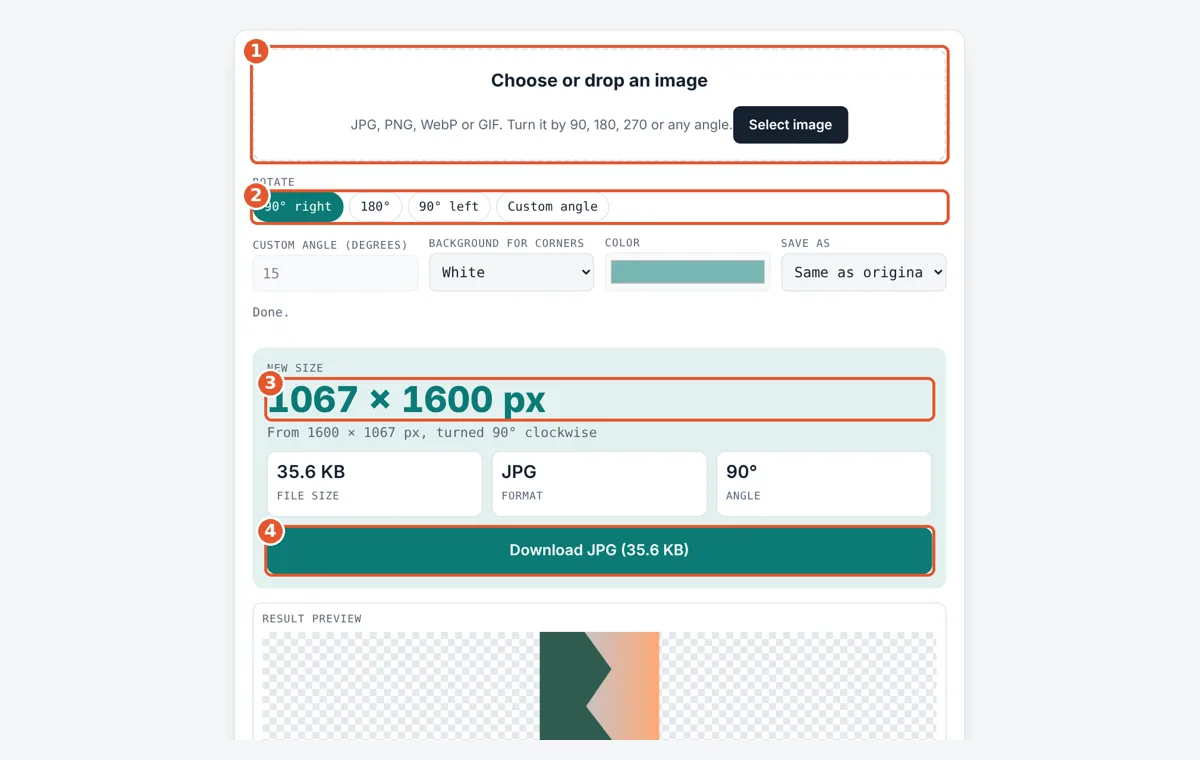
Choose your image
Tap the drop area and pick a JPG, PNG, WebP or GIF, or drag a file in.
Pick the rotation
Tap 90° right, 180° or 90° left, or Custom angle and type the degrees.
Check the new size
The big number shows the new width and height in pixels.
Download the image
Choose a corner background and format if needed, then tap Download.
Frequently Asked Questions
Does rotating an image reduce its quality?
A 90°, 180° or 270° turn saved as PNG keeps every pixel exactly. Saving as JPG compresses again at 92% quality, which is hard to see. Custom angles blend pixels, so very fine lines can soften slightly.
How do I rotate an image counterclockwise?
Tap 90° left for a quarter turn the other way, or choose Custom angle and type a negative number. For example, -30 turns the picture 30° counterclockwise and makes a 1600 × 1067 photo 1919 × 1724 px.
How do I straighten a crooked scan?
Choose Custom angle and try small values such as 1, 2 or -1.5 until the text lines look level in the preview. Then crop away the filled corners. On a 1600 × 1067 photo, a 1° turn adds just 18 pixels to the width and 28 to the height.
Is rotating the same as flipping?
No. Rotating turns the whole picture around its center, so text stays readable. Flipping makes a mirror image, so text reads backwards. A 180° rotation equals flipping both horizontally and vertically at the same time.
Can I rotate a PNG and keep it transparent?
Yes. Choose Transparent for the corners and save as PNG or WebP. The original transparent parts and the new corners both stay clear. Saving as JPG fills them with white, since JPG has no transparency.
Is my image uploaded to rotate it?
No. The rotation runs in your browser on a canvas, so the image never leaves your device. Camera details such as GPS location are not copied into the downloaded file.
Sources and Further Reading
- MDN Web Docs: CanvasRenderingContext2D rotate() method
- MDN Web Docs: CSS image-orientation property
- Wikipedia: Rotation matrix
Related Tools
Last reviewed: October 2026