Pick a photo, type a new width or height (or a percent), choose JPG, PNG or WebP, and download the resized copy. Presets cover social posts, HD screens and thumbnails.
Runs in your browser. Your image is never uploaded to a server.
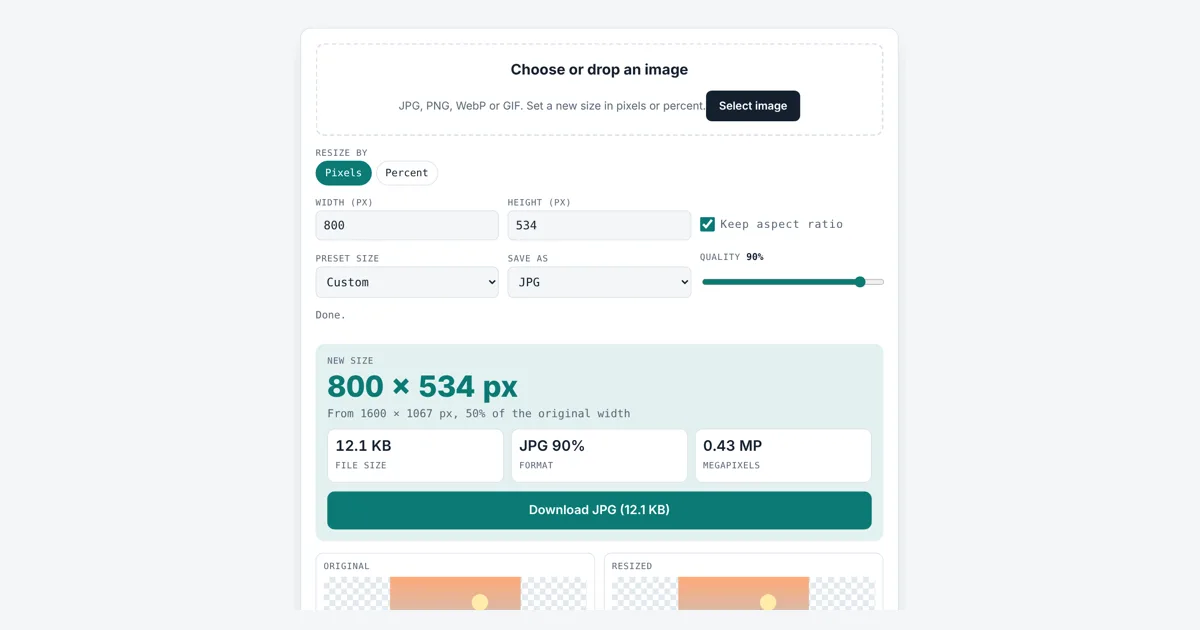
This image resizer is for bloggers, sellers, students and anyone who needs a picture at an exact pixel size for a website, a listing or a social post. You get the new width and height, the file size, and a download in JPG, PNG or WebP, made on your own device.
How Do I Resize an Image to an Exact Size?
Load the image, keep Pixels selected and type the width you need. With Keep aspect ratio on, the height follows. Our 1600 × 1067 test photo set to 1200 px wide became 1200 × 800 px, 20.1 KB as a 90% JPG. Untick the lock to force both numbers.
How Does an Image Resizer Change the Size of a Photo?
An image resizer draws your photo onto a new grid of pixels with the width and height you ask for, then saves that grid as a new file.
percent mode: new width = original width × percent ÷ 100
preset with the lock on: scale = smaller of (box width ÷ width, box height ÷ height)
A pixel is one dot of color, and the count of pixels across and down is the image size. Making a picture smaller means many old pixels must be blended into each new one. That blending is called resampling, or interpolation. The tool uses the browser canvas with high quality smoothing, which averages neighbours so edges stay smooth instead of jagged.
What Does Keep Aspect Ratio Mean When You Resize an Image?
Keep aspect ratio means the width and height change by the same factor, so the photo keeps its shape and nothing looks stretched or squashed.
The aspect ratio is width divided by height. Our test photo is 1600 × 1067, about 3 to 2. With the lock on, a preset fits the photo inside the box, so the 1080 × 1080 square preset gives 1080 × 720, not a square. To fill a square without stretching, cut the sides first with the crop image tool, or work out the shape with the aspect ratio calculator.
| Preset | Common use | 1600 × 1067 photo with lock on |
|---|---|---|
| 1920 × 1080 | Full HD screen, video thumbnail | 1619 × 1080 |
| 1280 × 720 | HD screen, slides | 1080 × 720 |
| 1080 × 1080 | Square social post | 1080 × 720 |
| 1200 × 630 | Link preview image | 945 × 630 |
| 1500 × 500 | Profile header banner | 750 × 500 |
| 800 × 600 | Blog or listing photo | 800 × 534 |
| 150 × 150 | Thumbnail or avatar | 150 × 100 |
Untick Keep aspect ratio and the preset uses the exact width and height, which stretches the photo if the shapes differ.
Which Format Should I Save a Resized Image In?
Save photos as JPG or WebP for small files, and save logos, screenshots and images with see-through parts as PNG.
JPEG uses lossy compression that suits photos, and the Quality slider trades detail for size. PNG is lossless and keeps transparency, but photos come out larger. WebP, a format from Google, supports both lossy and lossless modes plus transparency, and often makes the smallest file. At 400 × 267, our test photo was 5.6 KB as a 90% JPG, 2.9 KB as WebP and 16.3 KB as PNG. If you only need a smaller file and not new dimensions, the image compressor is the quicker choice.
Can You Make a Small Image Bigger Without Losing Quality?
No, enlarging adds pixels but cannot add detail that the camera never captured, so a big upscale looks soft or blurry.
The tool lets you go up to 500% or 10,000 pixels a side and warns you when the new size is larger than the original. Small enlargements, up to about 150%, usually look fine on screens. The megapixel count shown in the result, width × height ÷ 1,000,000, tells you how much data the new image holds.
Worked Example
A seller has a 1600 × 1067 product photo (47.6 KB) and a shop that wants images 800 px wide. After loading it, the tool starts at half size, 800 × 534 px, shown as 50% of the original width and 0.43 MP. Saved as a 90% JPG the file is 12.1 KB. Typing 1200 in the width box changed the height to 800 and the file to 20.1 KB. Switching to Percent and typing 25 gave 400 × 267 px: 5.6 KB as JPG, 2.9 KB as WebP, 16.3 KB as PNG. File sizes come from Chrome and can differ a little in other browsers.
How Do You Use the Image Resizer?
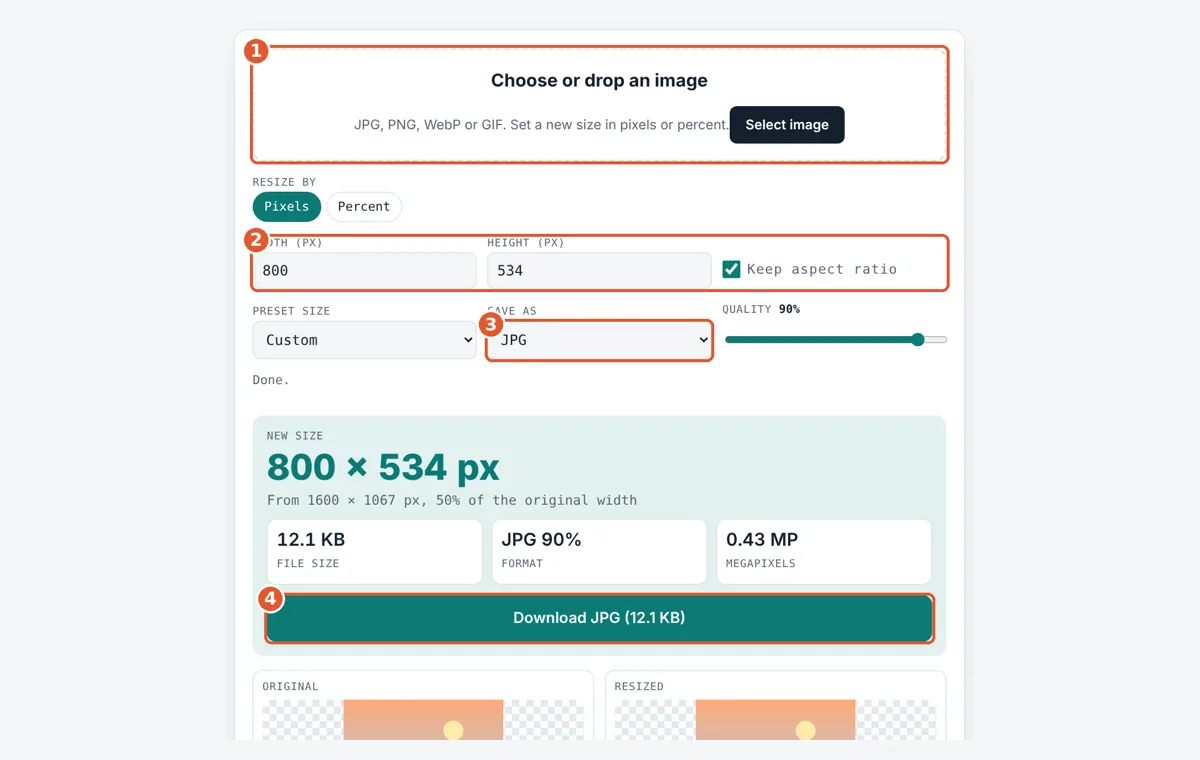
Choose your image
Tap the drop area and pick a JPG, PNG, WebP or GIF, or drag one in.
Set the new size
Type a width or height in pixels with the aspect lock on, or switch to Percent.
Pick preset and format
Choose a preset if you like, then JPG, PNG or WebP and the quality.
Download the image
Check the new pixel size and file size, then tap Download.
Frequently Asked Questions
How do I resize an image without stretching it?
Leave Keep aspect ratio ticked and type only the width or only the height. The other side is worked out for you, so a 1600 × 1067 photo at 800 px wide becomes 800 × 534 and keeps its 3 to 2 shape.
What is the largest size this resizer can make?
Up to 10,000 pixels on each side and 40 megapixels in total, or 500% in Percent mode. Larger canvases can crash phone browsers, so the tool shows a message instead of trying.
Does resizing reduce the file size?
Usually yes. Halving the width and height leaves a quarter of the pixels. Our 47.6 KB test photo at 800 × 534 became a 12.1 KB JPG at 90% quality, about a quarter of the original size.
Why does the 1080 × 1080 preset not give a square?
With the aspect lock on, presets fit your photo inside the box so nothing stretches. A 3 to 2 photo becomes 1080 × 720. Untick the lock for an exact 1080 × 1080, or crop the photo square first.
Will a PNG keep its transparent background?
Yes, if you save as PNG or WebP. Saving as JPG fills clear areas with white, because the JPEG format has no transparency. The status line tells you when that happens.
Is my photo uploaded anywhere?
No. The resizing uses the canvas built into your browser, so the image never leaves your phone or computer. The download link points to a file held in your browser memory.
Sources and Further Reading
- MDN Web Docs: CanvasRenderingContext2D drawImage() method
- MDN Web Docs: imageSmoothingQuality property
- Google for Developers: An image format for the Web (WebP)
- W3C: Portable Network Graphics (PNG) Specification
Related Tools
Last reviewed: October 2026