Crop any photo to a square, 16:9, 4:3, 9:16 or 4:5 shape, or drag your own size, then download it at full resolution. Everything runs in your browser, so the picture is never uploaded.
JPG, PNG or WebP
This file could not be opened as an image. Please choose a JPG, PNG or WebP file.
Drag the box to move it. Drag the round handle to resize. Size: 0 × 0 px
Cropping happens in your browser. Your image is not uploaded.
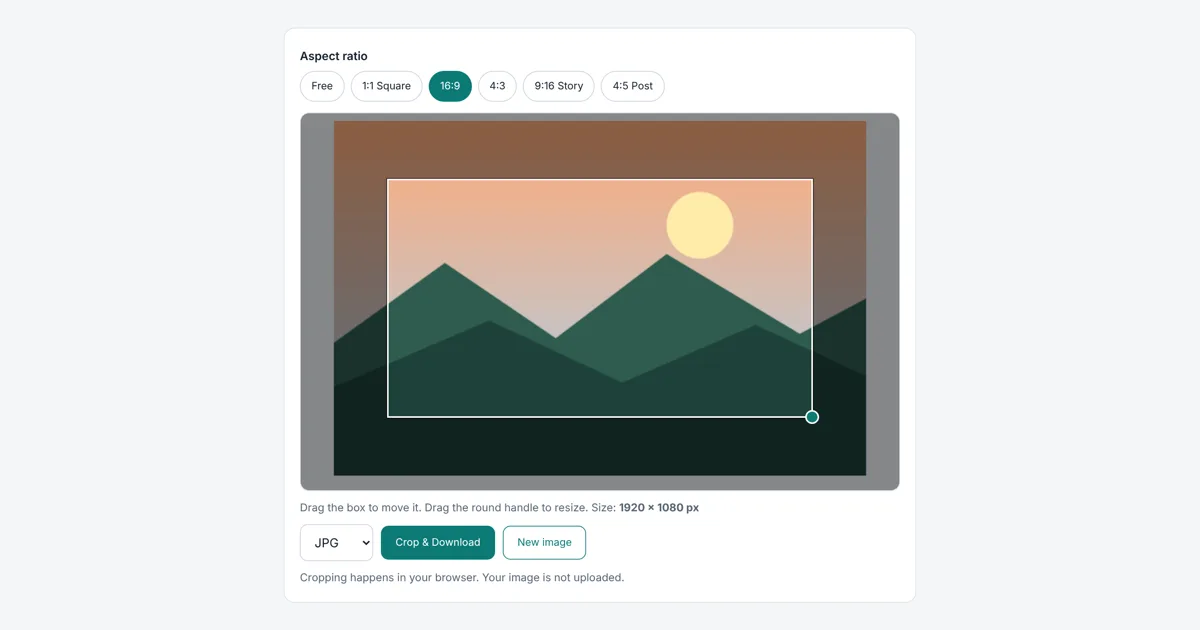
This free tool lets you crop image files to any shape, with ready made ratios for profile pictures, thumbnails and stories. It crops from the full size original, so the part you keep stays sharp, and your photo is never uploaded.
How Do I Crop an Image Online?
To crop an image online, upload it, drag the crop box over the part you want to keep and download. Pick 1:1 for profile photos, 16:9 for video thumbnails or 9:16 for stories. The tool cuts from the original file, so the kept area keeps its full resolution.
What Aspect Ratio Should I Crop To?
Crop to 1:1 for profile pictures, 16:9 for video thumbnails, 9:16 for stories and reels, and 4:5 for tall feed posts.
| Use | Ratio | Common size |
|---|---|---|
| Profile picture | 1:1 | 400 × 400 px or larger |
| Video thumbnail | 16:9 | 1280 × 720 px |
| Stories, reels, short videos | 9:16 | 1080 × 1920 px |
| Tall feed post | 4:5 | 1080 × 1350 px |
| Classic photo print | 4:3 | Depends on print size |
Platforms change their recommended sizes from time to time, so check the help page of the platform before a big campaign.
Does Cropping Reduce Image Quality?
No. Cropping only removes the outer parts of the picture, and the pixels you keep stay exactly as they were. A crop only looks soft if you later stretch a small area to a much bigger size.
Which Format Should I Save the Crop In?
Save photos as JPG for sharing, PNG if you need transparency or want no compression at all, and WebP if the crop is going on a website. If the file is still too big, run it through image compressor afterwards.
Not sure which ratio matches a size you were given? Our aspect ratio calculator works it out from width and height.
Worked Example
a 2400 × 1600 px photo cropped with the 16:9 preset gave a default box of 1920 × 1080 px, which is full HD. With the 1:1 preset the default square was 1280 × 1280 px, and after shrinking the box by hand the downloaded file measured exactly 739 × 739 px, matching the size shown under the image.
How Do You Use the Crop Image Online?
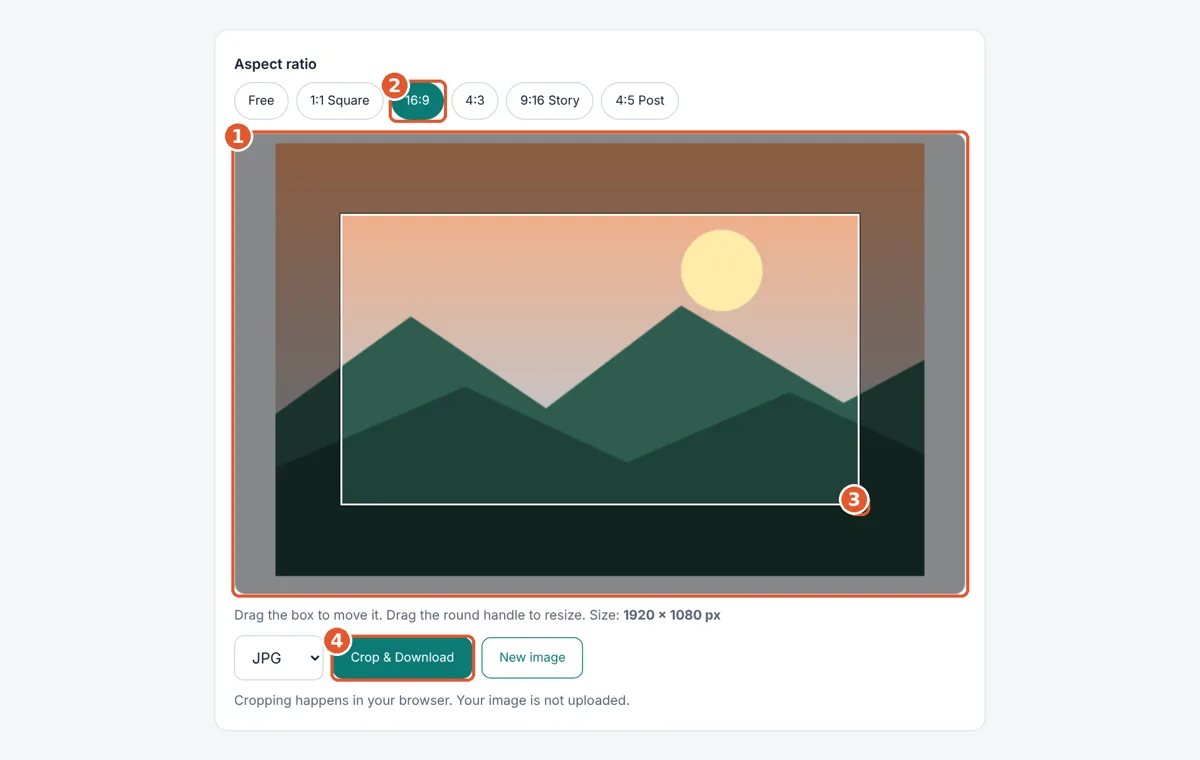
Upload your image
Tap the box or drag a photo into it.
Pick a ratio
Choose Free for any shape, or a preset like 1:1, 16:9, 4:3, 9:16 or 4:5.
Adjust the crop box
Drag the box to move it and drag the round handle to resize. The final size shows below in pixels.
Download
Choose PNG, JPG or WebP and tap Crop & Download.
Frequently Asked Questions
How do I crop a picture into a square?
Upload the image, tap the 1:1 Square button, then drag the box over the part you want to keep. Tap Crop & Download and you get a perfect square at full resolution.
Can I crop images on my phone?
Yes. The crop box works with touch, so you can move it and drag the round resize handle with your finger on any phone or tablet browser, including Chrome and Safari.
Will my cropped image be blurry?
No. The tool crops from the original full size image rather than the small preview, so the area you keep has all its original detail and sharpness.
What size will my cropped image be?
The exact width and height in pixels show under the image while you adjust the box. That number updates live, so you know the final size before you download.
Which format is the cropped image saved in?
You choose PNG, JPG or WebP before downloading. PNG keeps transparency, JPG is best for sharing photos, and WebP gives the smallest file for websites.
Is my photo uploaded to a server?
No. Cropping happens entirely in your browser using the canvas feature. Your photo stays on your device, so it is safe for private pictures and documents.
Sources and Further Reading
Related Tools
Last reviewed: October 2026