Compress JPG, PNG and WebP images right in your browser. Set the quality, see exactly how many KB each file saves, and download one image or a ZIP of all of them, without uploading anything.
Everything runs inside your browser with the HTML canvas. Nothing is uploaded, and camera metadata such as GPS location is not copied into the new file.

This image compressor shrinks photos and graphics for websites, email, online forms and messaging, for anyone who needs a smaller file without a visibly worse picture. It re-encodes each image with your browser’s own JPG, PNG or WebP encoder, can scale down oversized photos at the same time, and never hands back a file that is bigger than the one you started with.
How do I compress an image without losing quality?
Save it as JPG or WebP at a quality of 75 to 85 and resize the longest side to the size you really need, such as 1920 px for a full width web image. In our image compressor test, a 516 KB NASA photo dropped to 189 KB at quality 85, a 63% saving.
How Does Image Compression Work?
Image compression works by storing the same picture with fewer bytes, either by describing it more efficiently (lossless) or by throwing away detail your eye is unlikely to notice (lossy). An uncompressed photo needs 3 bytes for every pixel, one each for red, green and blue:
Saving (%) = (original size − compressed size) ÷ original size × 100
A 12 megapixel phone photo of 4,032 × 3,024 px holds 12,192,768 pixels, so it would need about 34.9 MB uncompressed. A camera JPG of a few MB is therefore already compressed around 10 to 1, which matches the typical JPEG ratio described in the JPEG standard’s documentation.
JPG and WebP are lossy. The quality setting, from 10 to 100 here, tells the encoder how much fine detail to keep. PNG is lossless: every pixel survives, so a quality number has no effect and the only savings come from smarter encoding or fewer pixels. That is why the biggest single lever is often the longest side setting. Scaling a 4,032 × 3,024 photo to 1920 × 1440 keeps only 23% of the pixels, and the file shrinks roughly in step. If you need a set shape as well as a size, our aspect ratio calculator gives the exact dimensions.
What Quality Setting Should You Use for JPG?
For most photos, a JPG quality of 75 to 85 gives the best balance: files shrink by well over half while edges and skin tones stay clean. Below about 60, blocky patches start to appear in smooth areas such as skies. These are real results from this tool in Chrome, using NASA’s Hubble Deep Field photo (a public domain JPG of 1000 × 872 px and 516 KB):
| Setting | File size | Saved | Good for |
|---|---|---|---|
| Original | 516 KB | 0% | Archive copy |
| Quality 95 | 389 KB | 24% | Printing, editing later |
| Quality 85 | 189 KB | 63% | Portfolios, product photos |
| Quality 75 | 126 KB | 75% | Websites, blogs, email |
| Quality 60 | 88 KB | 83% | Thumbnails, chat apps |
| Quality 40 | 60 KB | 88% | Previews only |
| Quality 75, longest side 800 px | 78 KB | 85% | Upload forms, listings |
| WebP, quality 75 | 93 KB | 82% | Modern websites |
Other browsers use different encoders, so expect sizes within a few percent of these, not identical figures.
Worked example: a NASA portrait for a website
The official NASA portrait of astronaut Eileen Collins, saved as a PNG, is 512 × 512 px and 773 KB. Run through the compressor with Same format, it stays a lossless PNG and drops to 562 KB, a 27% saving. Switch Save as to JPG at quality 75 and it becomes 39 KB (95% smaller). Choose WebP at quality 75 and it is 26 KB (97% smaller). The 512 × 512 size did not change at all: the saving came purely from moving a photo out of a lossless format.
Should You Compress to JPG, PNG or WebP?
Use JPG for photos, PNG for screenshots, logos and anything that needs transparency, and WebP when you want the smallest file and know the site or app accepts it. WebP supports transparency and lossy compression together, and it opens in all current versions of Chrome, Edge, Firefox, Safari and Opera. JPG cannot store transparency, so when a transparent PNG is saved as JPG the tool fills the see-through areas with white.
Keep Same format when a form or platform insists on a particular file type. If the result would not be smaller, the tool keeps your original file and labels it Kept, so you never download a worse or larger copy by mistake.
How Small Should an Image Be for UK Forms, Email and Websites?
The right size depends on where the image is going, so check the limit first and compress to just under it. The UK passport service, for example, asks for a digital photo that is at least 600 pixels wide and 750 pixels tall and between 50KB and 10MB, according to GOV.UK. Many UK, Irish and EU job portals, university applications and council forms set much lower caps for photos and scanned documents.
When a form names an exact limit, a fixed target is faster than adjusting quality by hand: use our resize image to 50KB tool, or the 100KB and 20KB versions, which search for the highest quality that fits. For websites, a full width photo at 1920 px and quality 75 to 80 is a sensible starting point, and smaller content images rarely need more than 1280 px.
Does Compressing a Photo Remove Its Location Data?
Yes, with this tool it does. Phone and camera JPGs usually carry Exif metadata, which can include the camera model, the date and time and, when location is switched on, the GPS position where the photo was taken. The compressor draws each image onto an HTML canvas and saves a fresh file from it, and that process does not copy Exif data across. The compressed copy is therefore safer to post publicly, and slightly smaller too. Keep your original if you want the date and location for your own photo library.
How Do You Use the Image Compressor?
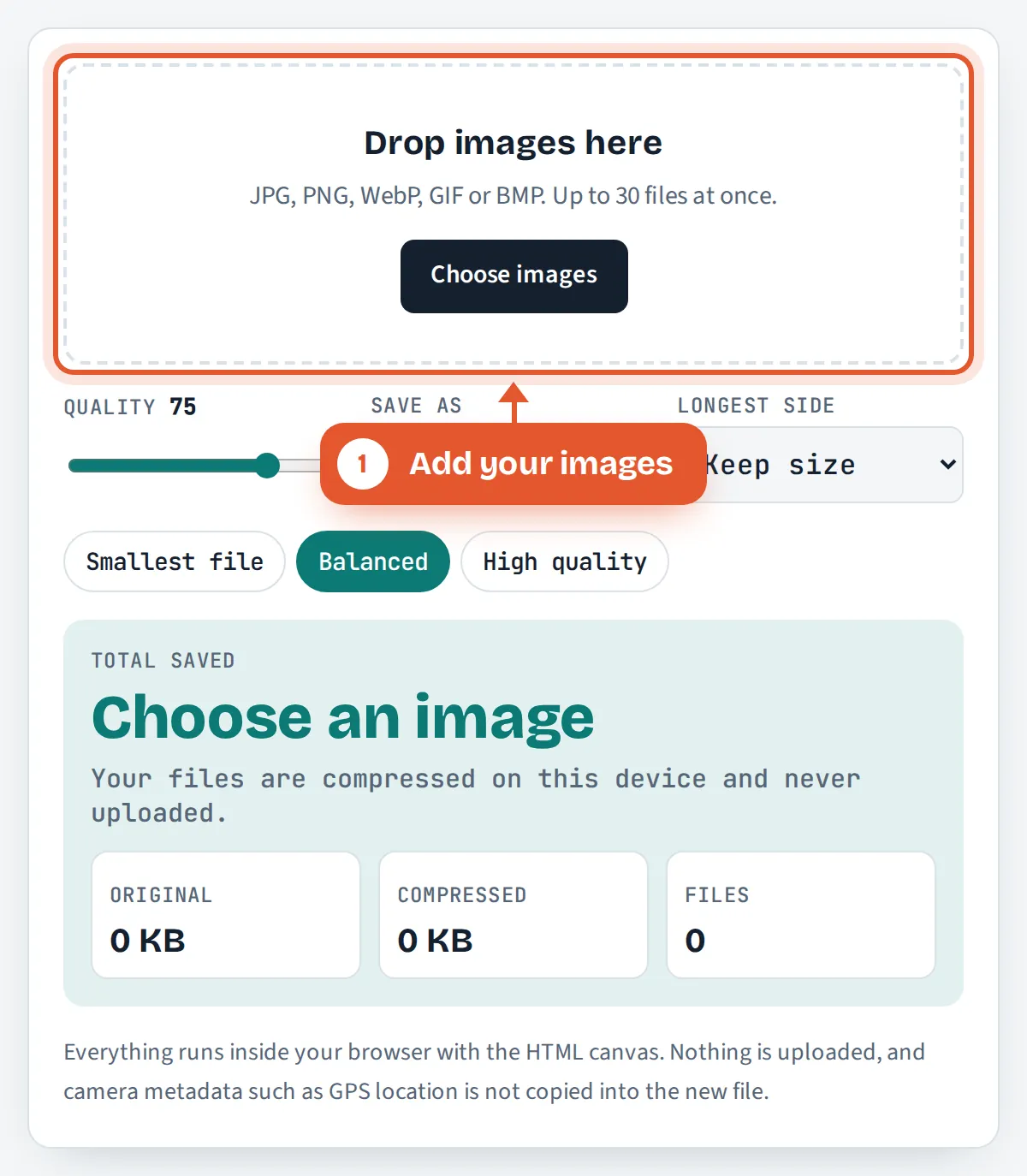
Add your images
Drop up to 30 JPG, PNG, WebP, GIF or BMP files on the box, tap Choose images, or paste a screenshot. They load straight from your device.

Set quality, format and size
Move the quality slider, pick Same format, JPG or WebP, and choose a longest side if the photos are larger than you need.
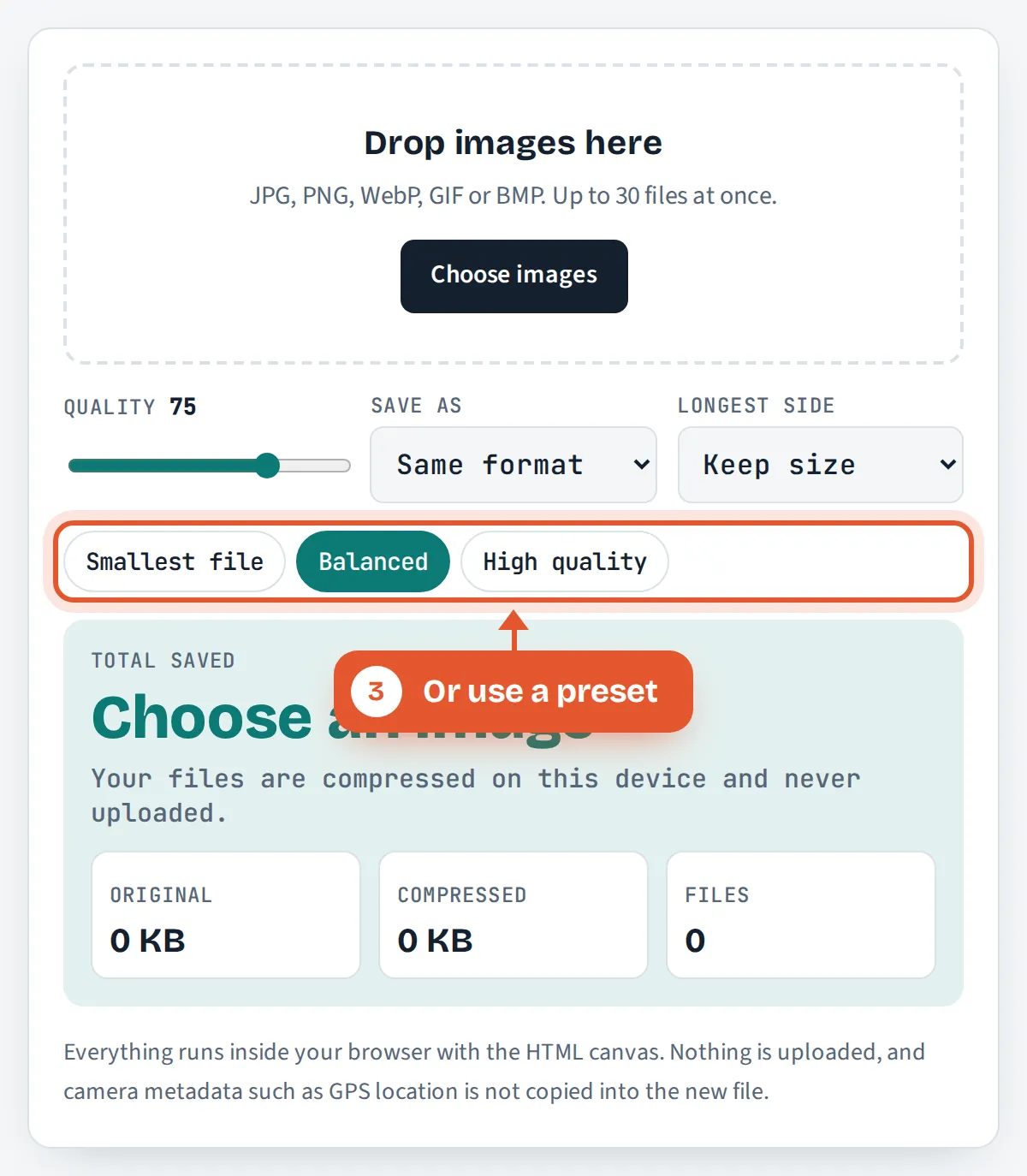
Or use a preset
Smallest file sets quality 55, Balanced sets 75 and High quality sets 88. Every file is recompressed as soon as you change a setting.
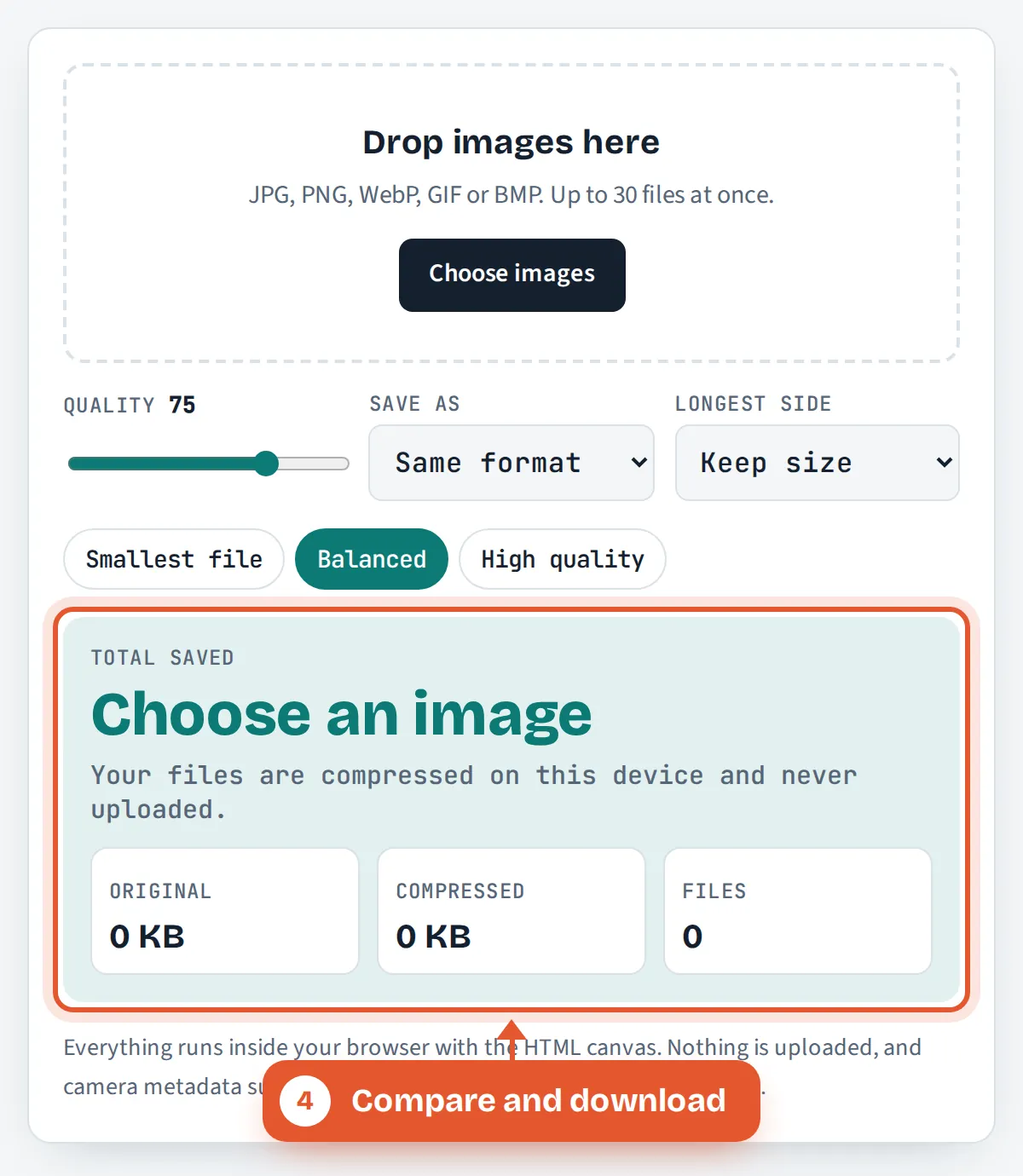
Compare and download
Check the total saving and each file’s before and after size, then download a single image or all of them in one ZIP.

Frequently Asked Questions
Is this image compressor free and private?
Yes. It is free with no sign up, watermark or daily limit, and it runs entirely in your browser. Your images are read from your device, compressed with the browser’s own encoder and saved back to your device. Nothing is uploaded to ToolsVortex or any other server.
Why did my PNG barely get smaller?
PNG is a lossless format, so the quality slider cannot remove detail from it. In our tests, re-encoding PNG files saved between 0 and 27 percent. To shrink a PNG photo dramatically, save it as WebP, which keeps transparency, or as JPG if you do not need transparent areas.
Can I compress an image to an exact size such as 50KB?
This tool works by quality and dimensions, so the final size depends on the picture. For a hard limit, use the resize image to 50KB tool, which automatically finds the highest quality that fits under the target size.
Does compressing a JPG again make it worse?
Yes, a little each time. Every lossy save discards more detail, and repeated saves can build up visible blocks around edges. Always compress from the original photo rather than from a copy you have already compressed, and keep the original as your master file.
Can I compress iPhone HEIC photos?
Most browsers cannot open HEIC files, so the tool will tell you if one is skipped. On iPhone, go to Settings, Camera, Formats and choose Most Compatible to shoot in JPG, or export the photo as JPG from the Photos app before adding it here.
What is the difference between compressing and resizing an image?
Compressing keeps the same width and height but stores the pixels more efficiently. Resizing reduces the number of pixels. Resizing usually saves more: halving the width and height removes three quarters of the pixels. This tool can do both at once with the longest side setting.
Sources and Further Reading
Related Tools
Last reviewed: October 2026